
The SFC /scannow command is a built-in Windows tool that scans and repairs corrupted system files. It is a useful tool for troubleshooting a variety of Windows problems, including:
- Blue screen errors (BSODs)
- Application crashes
- System slowdowns
- Unexplained errors
To run the SFC /scannow command, you will need to open Command Prompt as an administrator. To do this, press the Windows key + X, then select "Command Prompt (Admin)" from the menu.
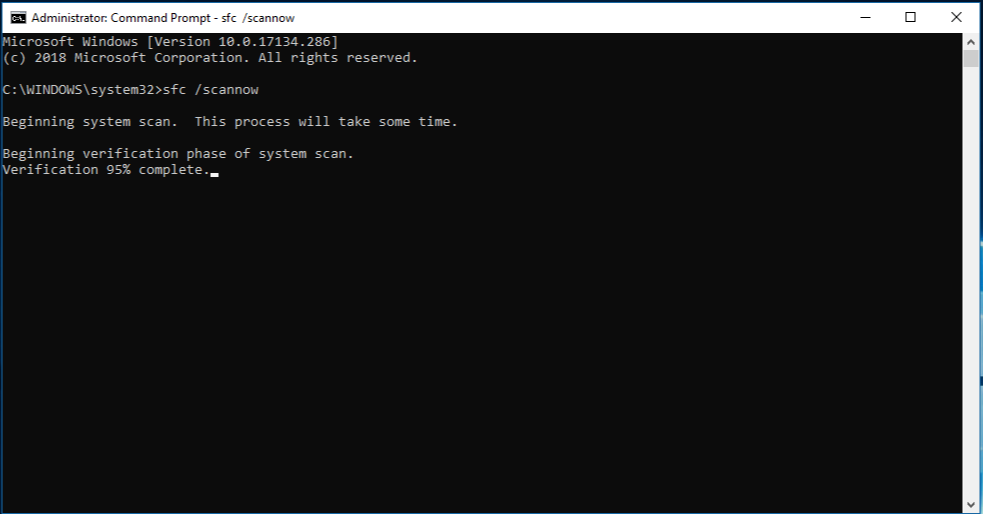
Once Command Prompt is open, type the following command and press Enter:
sfc /scannow
The SFC scan will take a few minutes to complete. Once it is finished, the Command Prompt window will display a message indicating whether any corrupted files were found and repaired.
If the SFC scan finds and repairs corrupted files, you will need to restart your computer for the changes to take effect.
Here are some additional things to keep in mind when using the SFC /scannow command:
- The SFC scan will only repair corrupted files that are located in the Windows system directory. It will not repair corrupted files that are located in other directories.
- If the SFC scan cannot repair a corrupted file, you may need to use the DISM tool to repair the Windows image.
- The SFC scan can sometimes take a long time to complete, especially if you have a large number of files on your computer.
The SFC /scannow command works by comparing the integrity of protected system files on your computer to a special database of known good file versions. If a file is found to be corrupted, the SFC command will replace it with a copy from the database.
Here's a more detailed explanation of how the SFC /scannow command works:
- Launch Command Prompt as administrator: To run the SFC /scannow command, you must launch Command Prompt as an administrator. This is because the SFC command needs to have elevated privileges in order to access and modify protected system files.
- Enter the SFC /scannow command: Once Command Prompt is open, type the following command and press Enter:
sfc /scannow- Initiate the scan: The SFC scan will take a few minutes to complete. During this time, the SFC command will scan all protected system files on your computer and compare them to the database of known good file versions.
- Verify file integrity: If the SFC command finds a corrupted file, it will attempt to verify the integrity of the file using a cached copy of the file that is stored on your computer. If the cached copy is not available, the SFC command will download a new copy from the Microsoft Update website.
- Repair corrupted files: If the SFC command is able to verify the integrity of a corrupted file, it will replace the corrupted file with the cached or downloaded copy. This process is known as repairing the corrupted file.
- Display scan results: Once the scan is complete, the SFC command will display a message indicating whether any corrupted files were found and repaired. If no corrupted files were found, the SFC command will display a message indicating that Windows Resource Protection did not find any integrity violations.
- Restart the computer (optional): If the SFC command repaired any corrupted files, it is recommended that you restart your computer for the changes to take effect.
Overall, the SFC /scannow command is a valuable tool for troubleshooting Windows problems. It is a simple to use and effective way to repair corrupted system files and improve the overall health of your computer.
To use the SFC /scannow command, follow these steps:
- Open Command Prompt as an administrator. To do this, press the Windows key + X, then select "Command Prompt (Admin)" from the menu.
- In the Command Prompt window, type the following command and press Enter:
- The SFC scan will take a few minutes to complete. Once it is finished, the Command Prompt window will display a message indicating whether any corrupted files were found and repaired.
Here are some additional things to keep in mind when using the SFC /scannow command:
- The SFC scan will only repair corrupted files that are located in the Windows system directory. It will not repair corrupted files that are located in other directories.
- If the SFC scan cannot repair a corrupted file, you may need to use the DISM tool to repair the Windows image.
- The SFC scan can sometimes take a long time to complete, especially if you have a large number of files on your computer.
If you are having trouble using the SFC /scannow command, you can try the following:
- Make sure that you are running Command Prompt as an administrator.
- Try running the SFC scan in Safe Mode.
- Use the DISM tool to repair the Windows image.